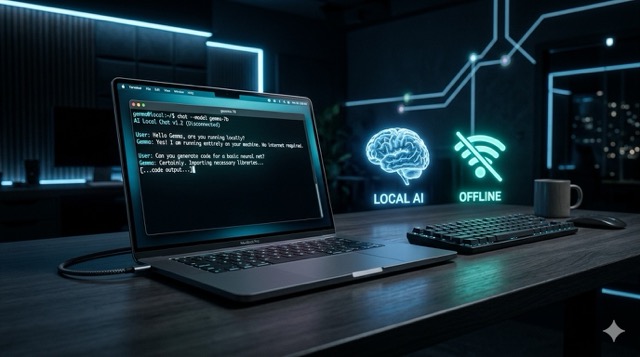
What if you could run a powerful AI model on your laptop without an internet connection, without paying for API credits, and without sending a single byte of your data to the cloud? With Google’s Gemma 4 and a tool called Ollama, that’s exactly what you can do — even on a modest 8GB RAM machine.
This guide walks you through the complete setup: installing Ollama, pulling the Gemma 4 model, and running it entirely offline on your MacBook.
🤔 What is Gemma 4?
Gemma 4 is Google’s latest open-weight AI model — “open-weight” meaning the model weights are publicly available for anyone to download and run locally. It’s part of the same family as the models that power Google’s Gemini, but designed specifically to be lightweight enough to run on consumer hardware.
Unlike cloud-based AI tools like ChatGPT or Gemini, running Gemma 4 locally means:
- Complete privacy — your prompts and data never leave your machine
- No API costs — no subscriptions, no pay-per-token billing
- Offline access — works anywhere, even without Wi-Fi
- No rate limits — use it as much as you want
🛠️ What is Ollama?
Ollama is a lightweight tool that makes running large language models (LLMs) locally dead simple. It handles model downloading, management, and serving — all through a clean CLI. Think of it as the App Store for local AI models.
It supports macOS, Linux, and Windows, and works with dozens of models including Gemma, Llama, Mistral, and more.
✅ Prerequisites
Before you start, make sure you have:
- A MacBook running macOS (Apple Silicon or Intel)
- At least 8GB of RAM (16GB recommended for smoother performance)
- Around 8–10GB of free disk space for the model
- macOS terminal access
No GPU required. Apple Silicon Macs use unified memory, which makes local AI inference surprisingly fast even on base models.
🚀 Step 1: Install Ollama
Open your Terminal and run:
curl -fsSL https://ollama.com/install.sh | sh
Once installed, verify it’s working:
ollama --version
You should see the version number printed. Ollama also runs a local server in the background on http://localhost:11434.
📥 Step 2: Pull the Gemma 4 Model
Now pull the Gemma 4 model. Ollama will download it automatically:
ollama pull gemma4
This will take a few minutes depending on your internet speed — the model is several gigabytes. You only need to do this once. After that, everything runs offline.
💬 Step 3: Run Gemma 4
Once the download is complete, start a chat session:
ollama run gemma4
You’ll get an interactive prompt where you can start typing questions directly. It works just like ChatGPT — but entirely on your machine.
To exit the session, type /bye or press Ctrl+D.
⚡ Performance on 8GB RAM
On a MacBook with 8GB RAM, Gemma 4 runs well for conversational tasks, summarisation, and code generation. Response times are a few seconds per output — not instant, but very usable. If you have a MacBook with 16GB or more, the experience is noticeably snappier.
Apple Silicon chips (M1, M2, M3, M4) handle local inference particularly well because of their unified memory architecture, which lets the CPU and GPU share the same memory pool efficiently.
🔒 Why Local AI Matters
Most people default to cloud-based AI without thinking about what that means. Every prompt you send to ChatGPT, Gemini, or Claude gets processed on remote servers. For casual use that’s fine — but for sensitive tasks like reviewing private documents, writing confidential emails, or working with proprietary code, local AI is a fundamentally better choice.
Running Gemma 4 with Ollama gives you the intelligence of a frontier-class model with the privacy of a tool that never phones home.
🎬 Watch the Full Setup
Watch the complete walkthrough — from zero to a fully running local Gemma 4 model on a MacBook:
🔮 What’s Next?
Once you have Ollama running, you can explore other models with a single command:
ollama pull llama3— Meta’s Llama 3ollama pull mistral— Mistral 7B, great for codingollama pull phi4— Microsoft’s compact but capable Phi 4
You can also connect Ollama to tools like Open WebUI for a full ChatGPT-style browser interface, or integrate it with VS Code extensions for local AI coding assistance.
Local AI is no longer just for researchers with beefy workstations. With Ollama and Gemma 4, it’s something anyone with a modern laptop can set up in under 10 minutes.