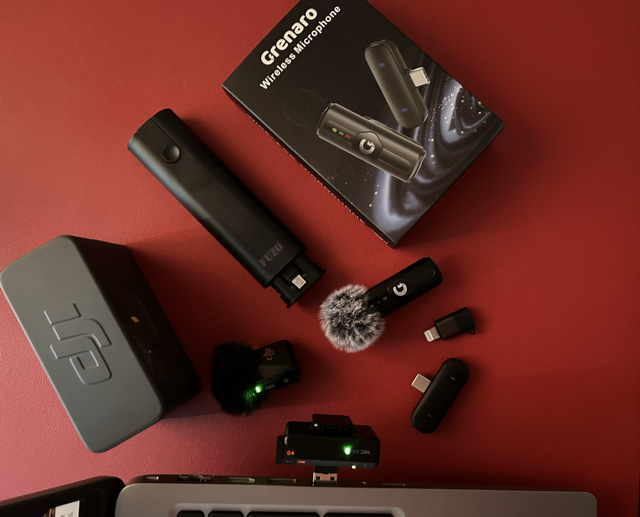
A viewer left a comment on one of my YouTube videos asking: “Can we use DJI Mic Mini with a PC that doesn’t have a Type-C port?” Great question — and the answer is yes. I tested it with both the DJI Mic Mini and the Grenaro wireless mic, and both work perfectly. Here’s exactly what you need and how to set it up.
🤔 The Problem
Modern wireless microphones like the DJI Mic Mini and Grenaro come with receivers that have a USB-C connector. That’s fine for newer laptops, Android phones, and iPhones 15 and above. But millions of PCs — especially desktops and older laptops — only have the traditional USB-A ports (the rectangular ones).
If you’ve ever tried plugging a USB-C receiver into a USB-A port, you already know: it doesn’t fit. You need an adapter.
✅ The Solution: A Multi-Functional Cable Kit
The simplest fix is a multi-functional charging cable kit that includes a USB-C to USB-A adapter. I used the FUZO CABLEVERSE Multi-Functional Charging Cable Kit — it’s a compact kit that covers multiple connector types including USB-C female to USB-A male, making it perfect for this exact use case.
One thing to note: the FUZO CABLEVERSE kit I used is currently out of stock on Amazon. A great alternative that might work the same way is the NOTYEX multi-functional cable kit, which is readily available.
- FUZO CABLEVERSE (out of stock, for reference): amazon.com/B09wnV3wZ
- NOTYEX alternative (available now): amazon.com/B0j0A19Xk
🔌 How to Connect — Step by Step
The setup is plug-and-play. No drivers, no software, no configuration needed.
1. Take the USB-C to USB-A adapter from the cable kit.
2. Plug the USB-C end into your microphone receiver (DJI Mic Mini receiver or Grenaro receiver).
3. Plug the USB-A end into any standard USB port on your PC.
4. Open your recording software — OBS, Audacity, Windows Voice Recorder, or any DAW. Your mic should appear automatically as an input device.
5. Select it as your microphone input and you’re good to go.
That’s it. No pairing, no Bluetooth, no setup wizard. The receiver is recognised immediately as a USB audio device by Windows and macOS.
🧪 Tested: DJI Mic Mini on PC
Here’s the DJI Mic Mini receiver connected to a PC using the USB-C to USB-A adapter. The microphone was recognised instantly and audio quality was exactly what you’d expect from the DJI Mic Mini — clear, crisp, with the onboard noise reduction working as normal.

🧪 Tested: Grenaro Wireless Mic on PC
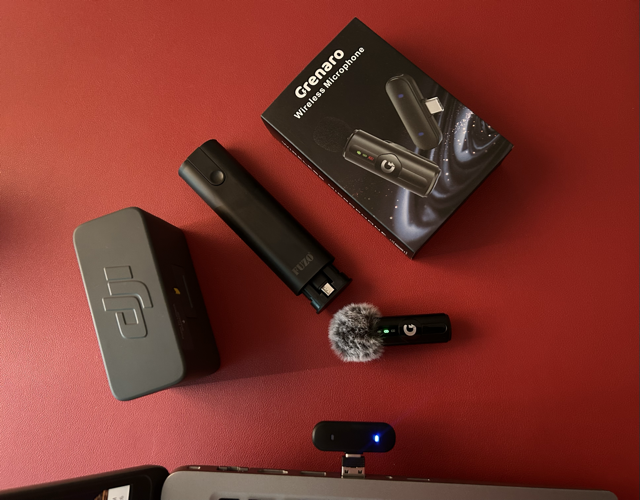
Same setup, same adapter, same result. The Grenaro wireless mic receiver also connected without any issues. Both the transmitter-to-receiver wireless link and the receiver-to-PC connection worked flawlessly.
🎬 Watch the Original Video
This article was inspired by a comment on my video about the Grenaro Type-C to Lightning adapter. Check it out if you’re also using these mics with an iPhone that has a Lightning port:
📋 What to Check Before You Buy
A few things worth confirming before you order any USB-C to USB-A adapter:
- OTG support — make sure the adapter supports USB OTG (On-The-Go). Most modern adapters do, but cheap ones sometimes don’t. OTG is what allows a USB-C device to act as a host when connected to a computer.
- USB 2.0 is enough — audio data from a wireless mic receiver is very lightweight. You don’t need USB 3.0 speed. Any USB-A port on your PC will work, including the older blue ones.
- No power delivery needed — the mic receiver is powered by its own battery (or by the USB connection itself in some cases). You don’t need a powered hub.
🖥️ Compatible Setups
This adapter approach works across:
- Windows PC — desktop or laptop with USB-A ports
- Mac — older MacBooks with USB-A, or via a USB-C hub with USB-A ports
- Linux — recognised as a standard USB audio device, no drivers required
- Any device with USB-A — including some smart TVs, recording interfaces, and camera monitors
💡 Pro Tip
If you’re doing a proper recording setup and want to keep the receiver plugged in while also charging other devices, look for a USB hub with individual power switches. That way you can connect the mic receiver to one port and keep other ports free for storage, lighting controllers, or other peripherals — all from a single USB-A port on your laptop.
A simple, cheap adapter is all that stands between your wireless mic and your PC. No need to buy a new laptop or a dedicated audio interface just to use a USB-C microphone on an older machine.